Cleaning your screen and keyboard without damage
Start with a suitable cloth and the instructions for your device before choosing a cleaner.
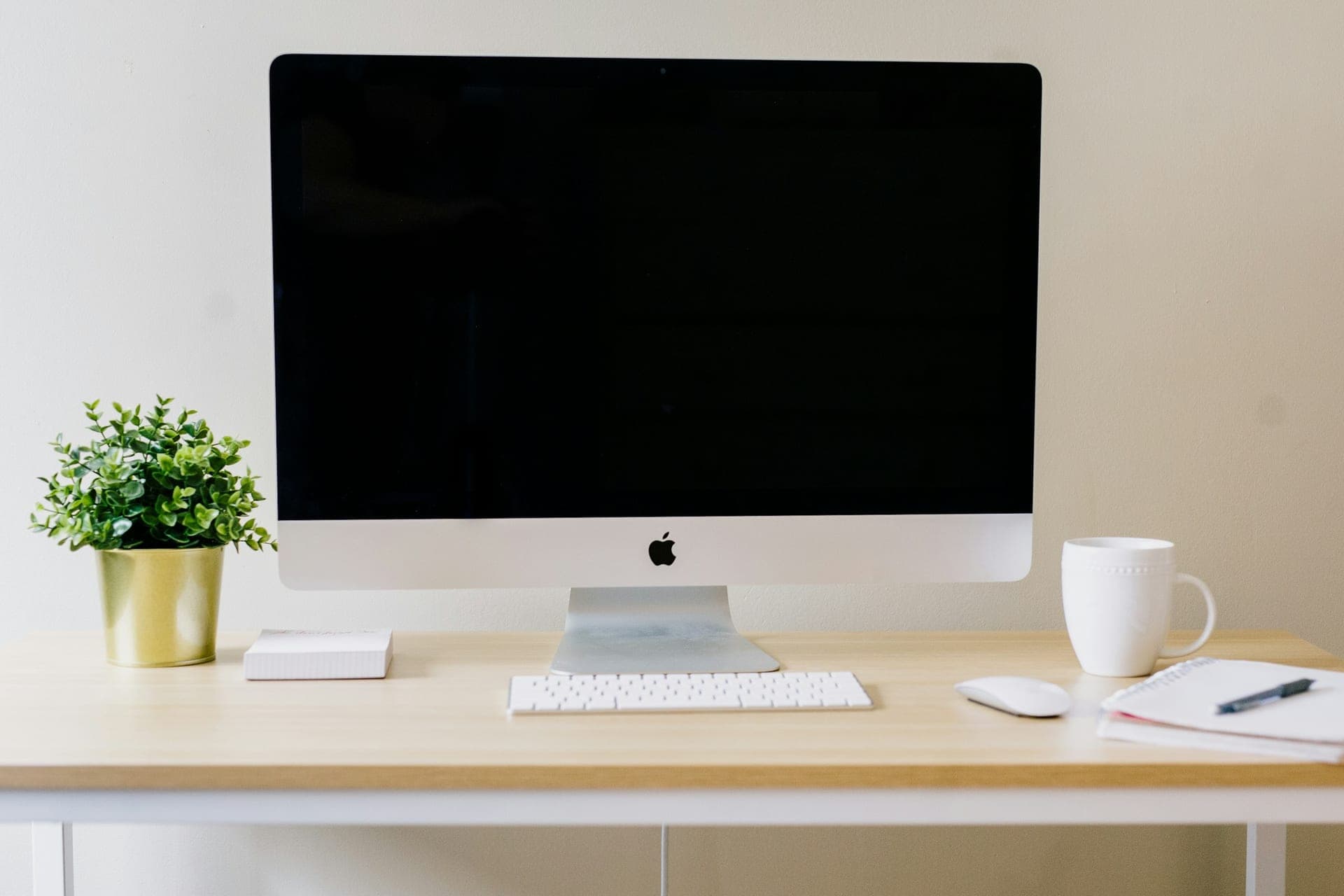
Photo: Amy Hirschi / Unsplash
A fingerprint on the screen, crumbs between the keys: cleaning the desk often starts with whatever cloth is nearby. Yet cleaning a screen and keyboard means treating their surfaces differently. A cleaner suitable for the casing may not suit the display, and a stubborn mark is no reason to scrub harder.
01. Start with the model, not the bottle
Find the model of your monitor or laptop and check the manufacturer’s care instructions. Apple distinguishes between materials and directs owners of nano-texture glass displays to specific guidance. Keep the relevant instructions available before switching the device off.
Permissions differ. Apple allows certain alcohol-based products on specified surfaces; Dell’s cleaning guidance for several monitor families excludes alcohol. There is no single recipe that resolves that difference for every display. If two pages appear to conflict, check which model they cover and ask support which procedure applies.
Set aside the recommended cloth: clean, soft and lint-free. Apple advises against abrasive materials and paper towels. A bottle labelled “screen cleaner” still needs to be checked for compatibility with your particular display.
02. Power down the workspace
Save and close your work, switch off the computer and monitor, then disconnect their power supplies. For keyboards, Logitech instructs users to unplug wired models or switch off wireless ones, and remove user-replaceable batteries. That does not mean opening a device to remove its built-in battery.
Move the mug and papers out of the way. If you need to disconnect several accessories, identify their connections first; our desk cable-management guide helps give them a clear route.
If the instructions permit damp cleaning, apply a small amount of the approved liquid to the cloth. It should not drip. Apple, Dell and Logitech advise against spraying the device directly: keep moisture away from openings and connectors.
03. Treat the display and keys separately
For its monitors, Samsung recommends waiting until the screen has cooled, then wiping gently with a clean microfibre cloth without pressing. Start with the dust-removal method in your device’s instructions. For a remaining mark, use only the damp-cleaning method they allow; if it persists, stop rather than pressing harder or trying a solvent.
For the keys on its keyboards, Logitech recommends gently wiping with a soft, lint-free cloth lightly dampened with water. That is surface cleaning, not permission to immerse or dismantle the keyboard. Do not remove keycaps without a procedure for your model. Deep cleaning and compressed air also need instructions specific to the device.
Clean the desk surface and mat separately, using the method appropriate to their materials. Keep the screen cloth apart from the one you have just used to pick up crumbs from the desk.
04. Let it dry before returning to work
Samsung says to let the monitor dry before reconnecting its power supply. Follow each device’s drying instructions; an improvised waiting time does not replace checking that the cleaned surfaces are dry.
If liquid has entered the device, stop routine cleaning. Keep it switched off and contact its support service; Apple advises prompt contact after liquid ingress. A key that remains stuck or a suspicious mark also deserves advice specific to the model.
Put the clean cloth away with the useful care instructions, then return the dry equipment to its place. Our guide to organising the desk by zones helps make maintenance easy to reach without adding a collection of cleaning bottles to the workspace.