How to organise a home-office desk: useful accessories, zone by zone
Make room for the work first. Then decide which trays, shelves, stands, and cable tools have earned a place.
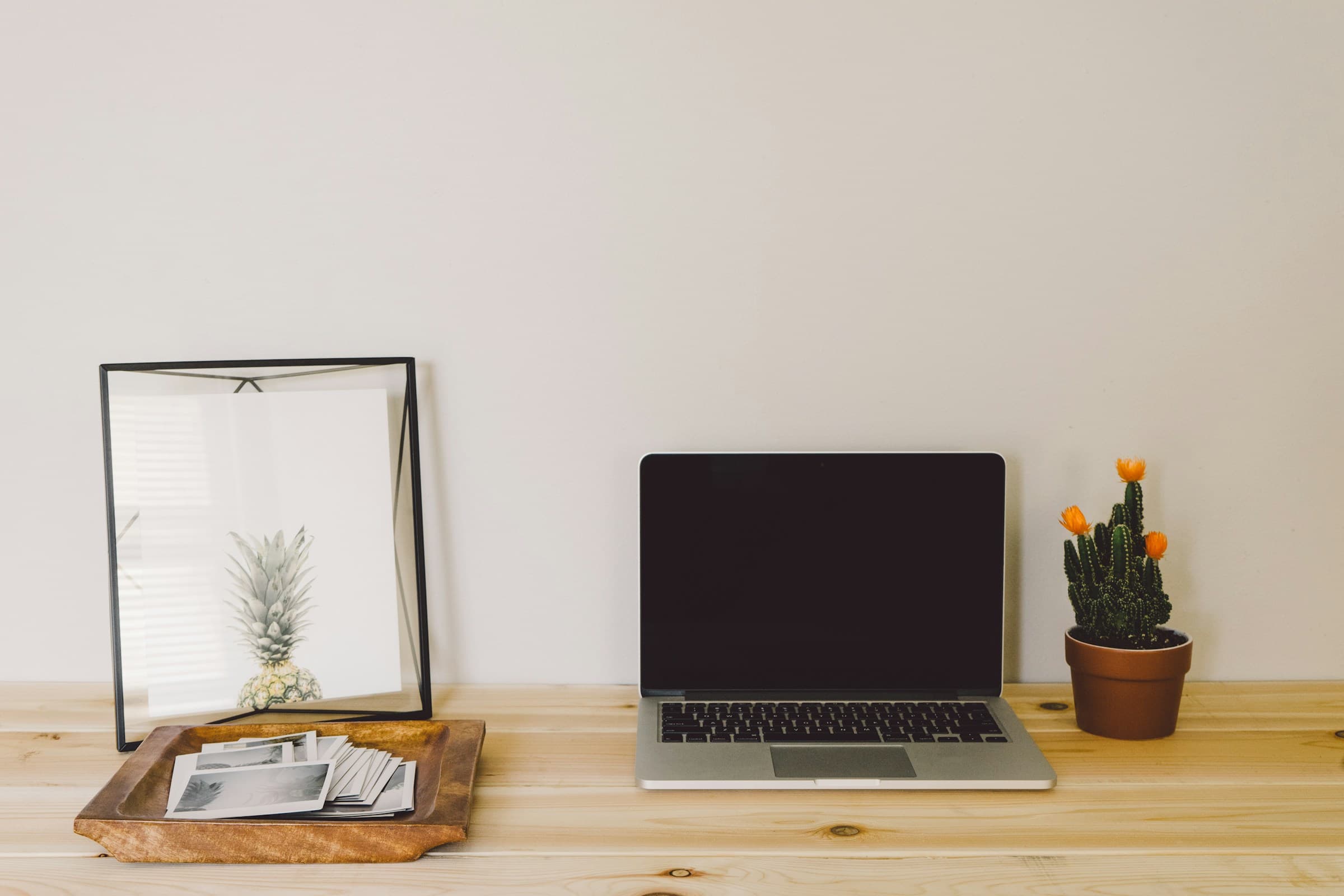
Photo: Pineapple Supply Co. / Unsplash
To organise a home-office desk, you do not need to line up more accessories on an already crowded surface. Decide where you look, where your hands work, where the current task sits, and where everything else goes. Storage comes after those decisions.
This guide complements our article on the psychology of visible desk clutter. Here, the focus is the desktop itself: where the equipment should go, which organisers solve a genuine problem, and which ones merely move the clutter around.
01. Take inventory before buying storage
The Canadian Centre for Occupational Health and Safety notes that different office tasks call for different equipment, accessories, and layouts. A desk used for video meetings, image editing, or paper-heavy review will not use its surface in the same way. No single shopping list suits every home office.
Set out what you use on an ordinary day: computer, display, keyboard, mouse, headset, phone, notebook, documents, and power. Add the constraints that do not move, including desk depth, outlet positions, the route behind the chair, and the place where equipment goes after work.
Remove the current pots, trays, and boxes. Put back only the equipment needed to complete one real task. Anything you add next must address a specific gap: an object with no assigned place, a cable in the walkway, a document beyond easy reach, or a display sitting too low.
02. Build five zones around the work
1. The viewing zone
Keep the main display in front of you. INRS uses a top edge at or slightly below eye level and a reading distance generally between 50 and 70 cm as starting points, adjusted for display size, resolution, and vision. Our workstation ergonomics guide covers those adjustments in more detail. For this exercise, keep the viewing area clear before adding a lamp, shelf, or decorative object.
2. The input zone
The keyboard and mouse form the working core. INRS places the keyboard about 10 to 15 cm from the front edge and the mouse in line with the forearm. If a tray or desk mat pushes the mouse sideways, that accessory is occupying the wrong space.
3. The action zone
This is where the current document, open notebook, or work phone sits. For frequent paper use, INRS suggests placing documents between the keyboard and display or close to the display. A document holder may be more useful here than a second pen pot.
4. The storage zone
CCOHS separates immediate reach for frequent items, arm’s reach for occasional items, and a farther zone for rare use. Turn that principle into layers: a shallow tray or small drawer for daily tools, a shelf or cabinet for weekly use, and a cupboard for spares and archives.
5. The clearance zone
This zone runs under the desk, behind the chair, and towards the outlets. There should be no storage box where your legs need to move. The chair must roll back without catching a cable. Empty space is part of the workstation, not spare storage.
The desk plan
- ViewThe screen in front of you.
- InputKeyboard and mouse within reach.
- WorkThe current document or notebook.
- StoreA place to put small objects back.
- ClearKeep the edge and walkway free.
03. Choose accessories zone by zone
Lay out the zones before opening a catalogue. For each one, name the problem first and account for the space the solution will occupy.
- Viewing — monitor riser or laptop stand. These help when the display sits too low. For prolonged laptop use, INRS recommends a separate keyboard and mouse, so make room for both before adding the stand. If the display is already well placed, do not give up desk depth for no reason.
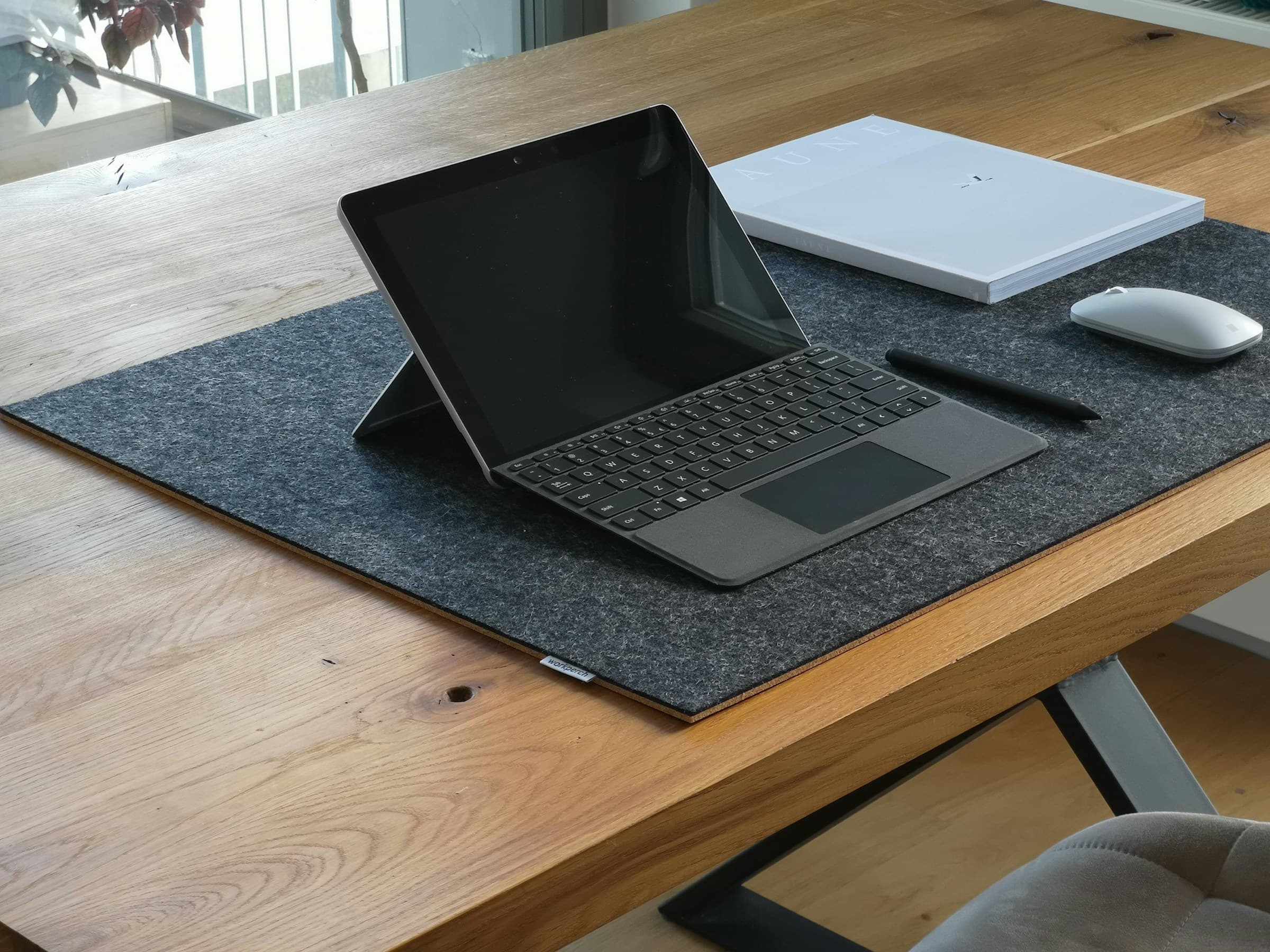
- Input — desk mat. A well-sized desk mat can define the keyboard area and protect the surface. Skip it if it shortens the mouse path or prevents a notebook from opening flat.
- Action — document holder or shallow catch-all. The first keeps frequently consulted pages close. The second gives today’s earbuds, pass, pen, or adapter a home. Once it fills with items kept “just in case”, it is a pile with walls again.
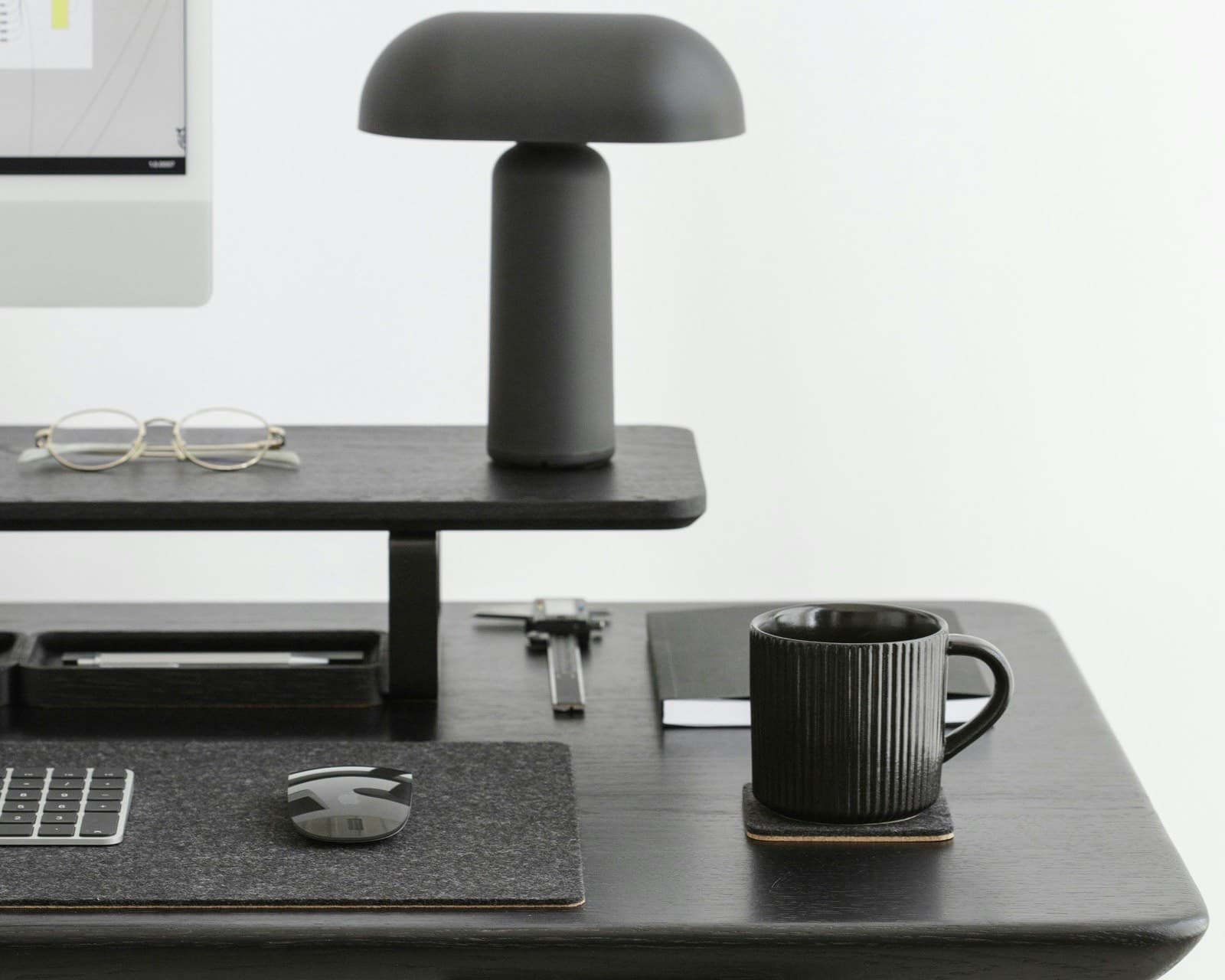
- Storage — vertical sorter, drawer, or shelf. A sorter keeps a few active folders visible; a drawer closes away material that should not stay on display. A shelf recovers height when surface area is tight. Our guide to organising the vertical with a desk shelf compares shelves, risers, and monitor arms.
- Clearance — clips or cable tray. Set the route from each device to the outlet first, then choose the fitting that keeps it away from feet and chair movement. The desk cable-management guide covers that process in detail.
04. In a small room, keep storage close
A bedroom corner or living-room desk cannot hold a piece of furniture for every type of object. It needs storage that is nearby, complete, and easy to close. A box that holds the keyboard but not the headset leaves half the equipment without a destination. A deep drawer where every adapter mixes together creates a daily search.
Use height first: a shelf above or beneath the display, a vertical sorter for active papers, or a side hook for the headset if the mounting point is stable. Use the underside of the desktop next, without taking legroom or blocking the chair. Keep one closed container for the equipment that leaves the desk after work.
If the table returns to domestic use in the evening, you should be able to clear all the equipment without sorting it again. Our reversible living-room workstation starts with that closing moment.
05. Give cables and documents a destination
CCOHS says a home workstation should be cleared of slip, trip, and fall hazards. Place the power strip and fixed cable points before the boxes. Leads should not cross the path of your feet or chair.
Documents need a different boundary. France’s CNIL advises remote workers to follow employer security rules and separate professional and personal uses where possible. Put paper files away, lock the session when you step away, and follow company instructions. Desk organisation does not replace the company’s security policy.
06. Finish without sorting again
When every object already has a defined place, resetting the desk is quick: put away the pen and headset, remove the cup, move waiting papers to their container, and take professional documents out of sight in a shared room. If that sequence still turns into a sorting session, one of the storage choices is too small, too far away, or too vague.
A clear workstation before a collection of accessories
An organised home-office desk is not measured by its number of containers. The display stays in front, the keyboard and mouse remain easy to reach, the current task has room, everything else leaves the desktop, and the route stays clear.
Begin with the equipment you already own. Draw the five zones. Then add the smallest accessory capable of solving the problem you observed. If it has no precise function and no stable home, it is probably already one object too many.
INRS, « Travail sur écran : prévention des risques » (in French)
INRS, « Travail sur écran », ED 6538, first edition, November 2024 (in French)
CCOHS, “Working in a Sitting Position - Basic Requirements”, revised 31 July 2024
CCOHS, “Purchasing Ergonomic Office Furniture”, revised 5 May 2026
CCOHS, “Telework / Remote Work / Working From Home”, revised 7 December 2023
CNIL, « Salariés en télétravail : quelles sont les bonnes pratiques à suivre ? » (in French)